Restricting Access to Intelligence with Workgroups
Workgroups provide granular control over the visibility of threat intelligence content you create on ThreatStream to groups of users in your organization. Workgroups enable you to restrict the observables, Threat Model entities, and investigations you create on ThreatStream to groups of users within your organization.
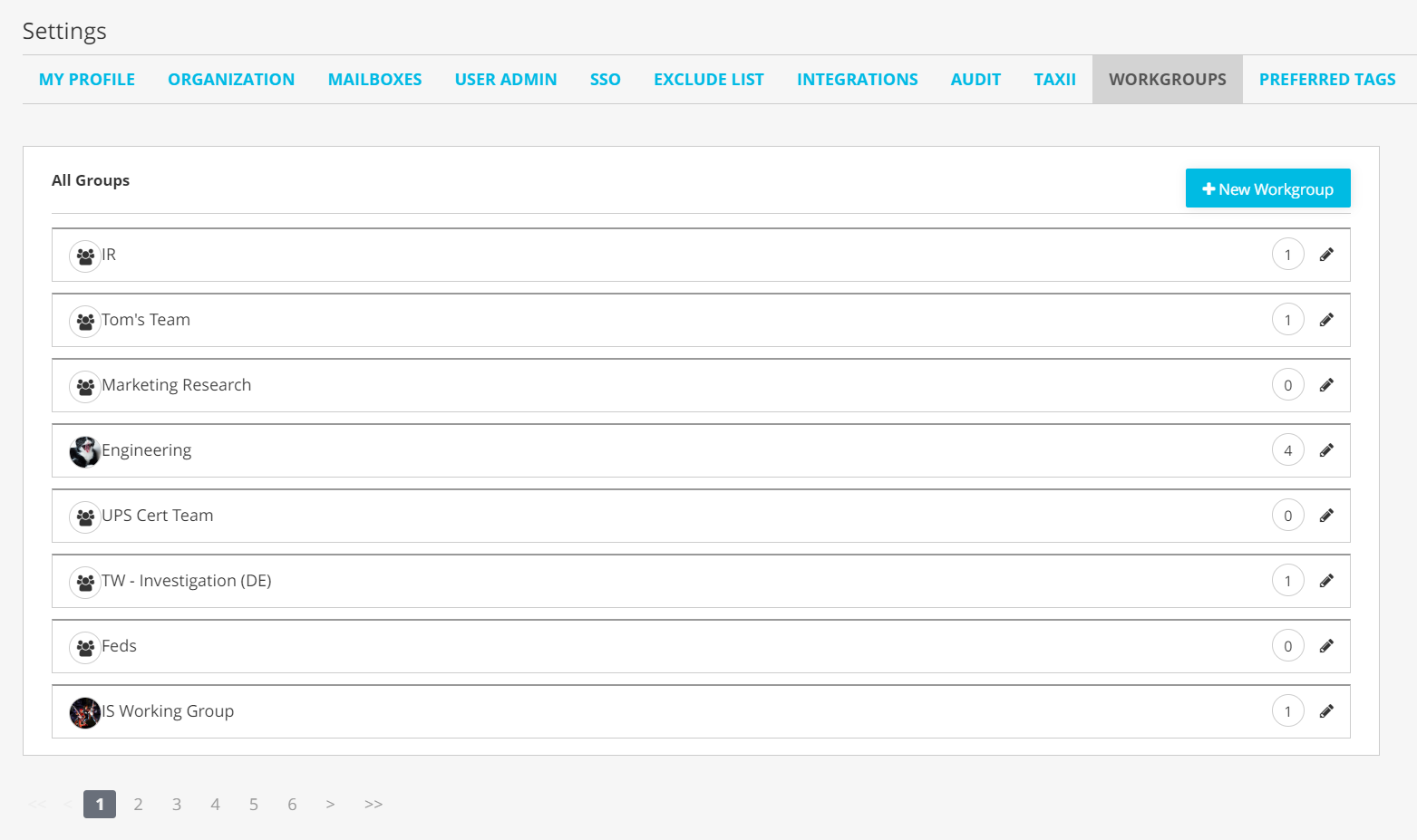
Org Admins can create and manage workgroups from the Workgroups tab within ThreatStream settings.
Actions Enabled by Workgroups
Workgroups can be leveraged to restrict access to the following entities created on ThreatStream:
-
Observables imported by your organization. See Restricting Observable Visibility to Workgroups and Restricting Observables Visibility to Workgroups During Import.
Mailboxes can be configured to share imported observables with workgroups as well. See Mailboxes for Receiving Observables for more information.
- Threat Model entities created by your organization from the ThreatStream user interface. See Restricting Threat Model Entities to Workgroups.
- Investigations created by your organization. See Understanding User Interface of Investigations.
Additionally, workgroups enable the following actions:
- Generating user activity reports based on workgroups. See Generating User Activity Reports By Workgroup.
- Searching observables visible only to specific workgroups. See Searching Workgroup Restricted Observables.
- Restricting rules email notifications to specific workgroups. See Notify.
- Assigning an investigation to a workgroup. See Assignee.
Workgroup Limitations
- Workgroups cannot be used to restrict the visibility of Sandbox Reports
- Rules do not match for keywords within intelligence whose visibility is restricted to workgroups
- Streams cannot be configured to restrict observables to workgroups
- TAXII sites cannot be configured to restrict observables to workgroups
- Intelligence snapshots do not include intelligence whose visibility is restricted to workgroups
Example Use Cases for Workgroups
The examples in this section illustrate ways in which workgroups can support organization workflows and intentional distribution of information.
Distinct Teams Within Your Organization
In cases where multiple teams within an organization use ThreatStream, workgroups enable teams to create intelligence which other teams can be excluded from accessing on a permanent or temporary basis.
For example, both the Threat Intelligence (TI) and Security Operations Center (SOC) teams in an organization have access to ThreatStream. The TI team, as it works on a new Threat Bulletin, wants to restrict access to the entity until it has been fully developed and is ready for wider distribution. Two workgroups can be created to address this need—one for the TI team and the other for the SOC team. The TI team can work and collaborate within their workgroup on the intelligence and publish it to the SOC team workgroup or organization as a whole when ready.
Levels of Classification Within Teams
Workgroups also enable the sharing of intelligence with different levels of sensitivity within a team.
For example, a Threat Intelligence team has three levels of internally understood classification for information—top secret, secret, and unclassified. To enable classification based sharing of intelligence, a workgroup is created for the three levels of classification. When an investigation is created that contains top secret information, its visibility is restricted to the top secret workgroup.
Managing Workgroups
Org Admins can manage workgroups from the Settings page.
To create a new workgroup:
-
In the bottom-left corner of the side navigation panel, click
 > ThreatStream and then click Workgroups.
OR
On an investigation page, expand the Assignee drop down and click New Workgroup.
- Enter a Name for the new workgroup.
- (Optional): Upload an Avatar for the workgroup.
- Click New Workgroup.
-
To add users to the workgroup, select a user from the drop-down list.
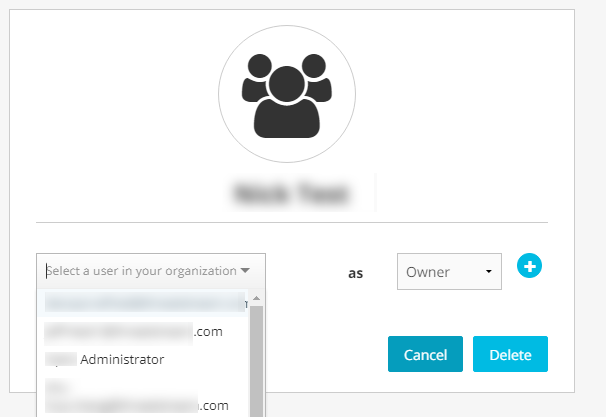
- Specify a Role for the selected user. Only users with the Owner role have the ability to remove users from workgroups. The Approver, Contributor, and Reviewer roles serve as labels for users in the context of investigations and do not grant additional privileges.
- Click +.
- (Optional): Add additional users as required.
To edit a workgroup:
-
In the bottom-left corner of the side navigation panel, click
> ThreatStream and then click Workgroups. -
Click the Edit icon.
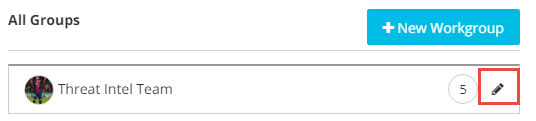
- Make necessary changes. Changes are saved automatically.
To delete a workgroup:
-
In the bottom-left corner of the side navigation panel, click
> ThreatStream and then click Workgroups. -
Click the Edit icon.
- Click Delete.
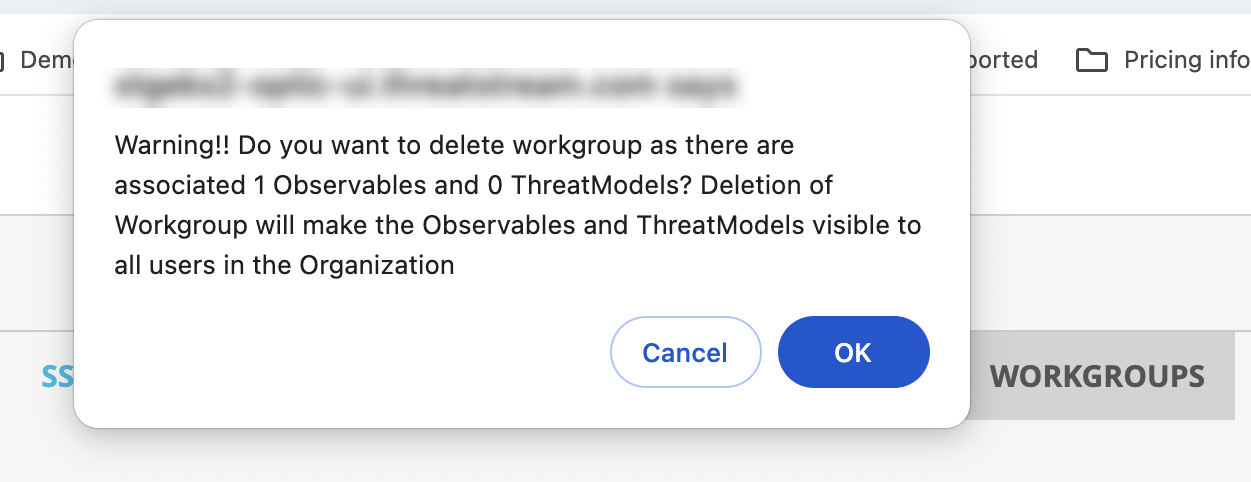
If you want to proceed with deletion of the workgroup, click OK to finalize the process.